
Your best friend for file transfer.
 Fetch
Fetch
 Fetch Help > Windows > Info Window
Info windows display detailed information about remote files and folders. You can also rename items, and set permissions and transfer options for files.
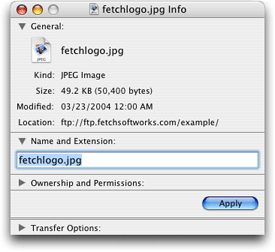
This is a detailed description of the info window; for a quick guide, see the info window introduction help topic.
To display an info window, select an item (or items) and choose Remote > Get Info.
Info windows are divided into several panes: General, Name and Extension, Ownership and Permissions, and Transfer Options. You can hide and show each pane by clicking the disclosure triangle to the left of its name. Which panes you see in the info window will vary, depending on whether you selected a single file, a single folder, or multiple files or folders.
The General pane shows the selected item's icon, kind, size, modification date, and location. If you selected multiple items, it shows the number of files and folders selected. If you selected a folder, or multiple items that include a folder, there is a button to calculate the size of all of the selected items (since calculating the size of folders can be time consuming, Fetch does not do it automatically).
Certain special characters in the location field may be percent-encoded (for example, %2F for a slash or %40 for an at sign) to conform with the FTP URL specification.
To change a file or folder's name or extension, edit the field in the Name and Extension pane, then click the Apply button.
The Ownership and Permissions pane shows who has access to read (view) and write (modify) the selected items. Permissions are shown both as checkboxes and a UNIX equivalent.
To change permissions, check or uncheck the checkboxes, then click the Apply button. If you have selected multiple items, some of the checkboxes may have a dash instead of being checked or unchecked. That means not all of the items have the same permissions. Leaving a checkbox with a dash unchanged will preserve the mixed permissions, even if you change other permissions. Changing a folder's permissions does not set the permissions of its contents — it only changes the permissions of the folder itself.
For just uploaded items on FTP connections, Fetch may show all the permissions checkboxes as unchecked and the owner and group as "unknown". This is not the true state of the permissions. To see the true permissions, you must click the Refresh  button in the transfer window, and get info on the items again. You can set the permissions immediately without refreshing. On SFTP connections, you will see the true permissions immediately, but you must refresh to see the true owner and group.
Typically you can only see or view permissions on servers running the UNIX operating system. For more information about interpreting and changing permissions, see the permissions and viewing and setting permissions help topics.
To discard any changes to the name or permissions, just close the info window without clicking the Apply button.
The Transfer Options pane lets you tell Fetch how it should download a file, and what it should do with it afterwards — such as whether to automatically open or decode files, or which application will be used to open or edit the file. For more information, see the transfer options help topic.
Command-click the proxy icon or title in an info window title bar to show the path to the items described in the window. Choosing a folder from the path pop-up menu shows that folder in a transfer window. Drag the proxy icon to a shortcut list window to create a shortcut to the items, to the Finder to create a droplet shortcut (for folders) or a shortcut document (for files), or to a text editor to copy the items' Fetch address (URL).
For a single file, the info window displays the file's icon, kind, exact size, modification date, location, name and extension, ownership, permissions, and transfer options.
For a single folder, the info window displays the folder's modification date, location, name, and permissions. There is a Calculate button that calculates the exact size of the folder's contents and how many files and folders it contains.
For multiple items, the info window shows the total number of items selected, the location of the items, and permissions. You can set the permissions of all the selected items, which is an easy way to make sure a group of files has the same permissions. If only multiple files are selected, the total size of all files is displayed automatically. If the items include a folder, there is a Calculate button that calculates the total size of all items (including the size of all folders' contents). For multiple folders or folders containing many items, calculating the size may take some time.
The permissions checkboxes may all be unchecked, and the ownership listed as "unknown", for files that you have just uploaded using FTP. Click the Refresh button in the transfer window and get info on the items again to see the true permissions.
The Transfer Options pane is not shown when you get info for an alias.
You can use the info window to find out how much space your files are taking up on your server, or how close you are to your server storage limit. When you select a set of files and folders, choose Get Info, and click the Calculate button, Fetch calculates the disk space taken up not only by those items, but by the items inside the folders too. Either select all the files and folders in a remote folder, or select the parent folder of the items in question, choose Get Info and click Calculate. The combined size of all items will be displayed in the info window. For many items, or folders with a large number of items inside them, this may take a while.